Record. Repeat. Automate on macOS.
macOS Macro Task Recorder is a lightweight app that records keyboard and mouse actions, including clicks, holds, drags, and keystrokes, then replays them with loop control and optional randomized delays.
Download
Get a simple, local macro recorder built for macOS workflows.
macOS Macro Task Recorder
Lightweight automation with saved recordings, loop controls, and clear macOS permission shortcuts.
- Version 1.0
- macOS only
- Local recordings
- No account required
System Requirements
- macOS 13 Ventura or newer
- Apple Silicon and Intel Macs
- Accessibility and Input Monitoring permissions required
- Internet connection not required after installation
Features
Everything needed for straightforward keyboard and mouse replay.
Why Use It?
Built for practical, repeated macOS workflows.
How It Works
Record once, save locally, and replay when you need the same steps again.
Record
Capture clicks, holds, drags, releases, and keystrokes.
Configure
Choose loop count, loop until stopped, and optional randomized loop delay.
Replay
Run the macro with Fn+F9 or the on-screen playback controls.
macOS Permissions
macOS requires permission before automation tools can record input or control apps.
Accessibility
Allows the app to replay clicks, drags, and keystrokes on your Mac.
Input Monitoring
Allows the app to listen for recording and playback shortcut keys.
Local & Private
All recordings are stored locally on your Mac. Nothing is uploaded to the cloud, and no account is required.
Use At Your Own Risk Disclaimer
This app is provided as a general-purpose automation tool. By using this app, you agree that you are solely responsible for how, where, and when you use it.
The creator of this app is not responsible or liable for any consequences resulting from its use, including but not limited to account bans, restrictions, suspensions, data loss, financial loss, violation of website, game, software, or platform terms of service, unintended actions, system issues, or any other direct or indirect damages.
You are responsible for ensuring that your use of this app complies with all applicable laws, platform rules, game rules, website terms, workplace policies, and software agreements.
Use of this app in any game, website, application, or online service is entirely at your own risk.
How to Use macOS Macro Task Recorder
A step-by-step guide from permissions to saved recordings.
1. Permissions
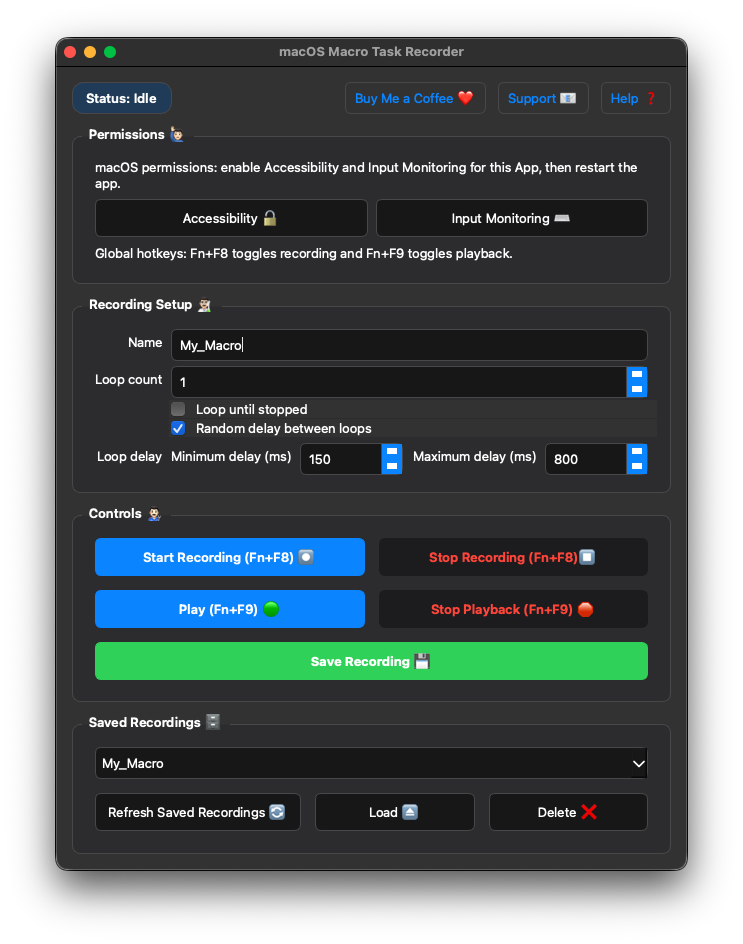
Start at the Permissions section. Click Accessibility and enable permissions for the app. Then click Input Monitoring and enable the same launcher there. Restart the app after changing these settings so macOS applies them cleanly.
2. Keyboard Shortcuts
The app uses Fn+F8 to toggle recording and Fn+F9 to toggle playback. You can also use the on-screen buttons.
3. Recording Setup
Enter a recording name before recording. Choose a loop count if you want playback to repeat a fixed number of times, or enable Loop until stopped if you want it to continue until you press Stop Playback or Fn+F9.
4. Random Delay Between Loops
Use Random delay between loops to add a pause only between complete loop runs. Set the minimum and maximum delay in milliseconds. The app keeps every recorded event's timing intact; only the pause before the next loop is randomized. Randomized loop delay helps playback feel less repetitive. Any use of this app or this function is the user's responsibility.
5. Controls
Click Start Recording or press Fn+F8, perform the clicks and keystrokes you want to save, then click Stop Recording or press Fn+F8 again. Click Play or press Fn+F9 to replay the macro. Click Stop Playback or press Fn+F9 again to interrupt playback immediately.
6. Saving
After recording, click the green Save Recording button. Saved recordings are stored locally and can be loaded later from the Saved Recordings dropdown.
7. Saved Recordings
Use the dropdown to choose a saved recording. Click Load to make it the active macro, Delete to remove it, or Refresh if files were added while the app was already open.
8. Help, Support, and Donations
Use the Support button for support requests.
If this app helped you, donations are welcome through the Buy Me a Coffee button, buymeacoffee.com/mecano.
FAQ
Does it save recordings locally?
Yes. Recordings are saved locally on your Mac and can be loaded later from the saved recordings dropdown.
Which shortcuts does it use?
Fn+F8 toggles recording. Fn+F9 toggles playback.
Does randomized loop delay change recorded event timing?
No. Recorded event timing stays intact. The randomized delay is only inserted between complete loop runs.
Is it built for macOS?
Yes. The app is built around macOS permissions and shortcut behavior.
Does it work on Windows?
No. macOS Macro Task Recorder is built only for macOS.
Can I stop playback immediately?
Yes. Press Fn+F9 again or click Stop Playback.
Does it support mouse holds and drag-and-drop?
Yes. The app records mouse down, mouse movement, and mouse up separately.
Are recordings stored in the cloud?
No. Recordings are stored locally on your Mac.
Does it require an internet connection?
No. The app works locally after installation.
Latest Updates
Version 1.0
- Mouse hold support
- Drag support
- Random delay between loops
- Loop until stopped
- Local saved recordings
- Fn+F8 recording toggle
- Fn+F9 playback toggle
Support / Donations
Need help or want to support continued development?